 DisplayLatch
Why macOS can't dim your external monitor
The brightness keys and the slider in System Settings › Displays only work on screens Apple drives directly: the MacBook's built-in panel, the Studio Display and the Pro Display XDR. A Dell, LG, Samsung or BenQ monitor keeps its brightness setting inside the monitor, and macOS has no built-in way to change it.
That setting can be changed from the computer through DDC/CI (Display Data Channel Command Interface). It's a standard command channel that runs over the same HDMI, DisplayPort or USB-C cable as the picture. Nearly every desktop monitor made in the last 15 years supports it.
Step by step: change brightness with DisplayLatch
- Check DDC/CI on the monitor. Open its on-screen menu and look for DDC/CI, usually under System or Other settings. Turn it on if it's off.
- Install DisplayLatch. Download it free, drag it into Applications and open it. A display icon appears in the menu bar.
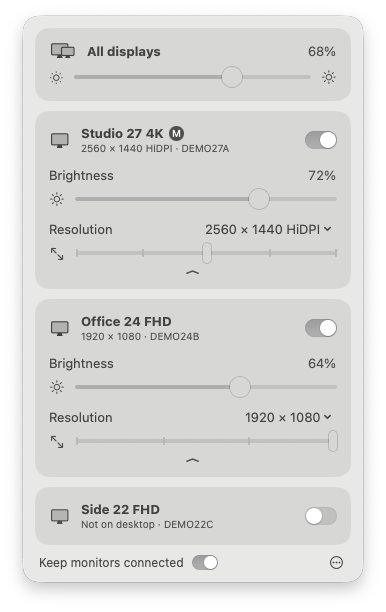
- Drag a slider. Each monitor has its own Brightness slider. The monitor's backlight changes right away.
- Or move them all. With two or more screens, the All displays slider changes the MacBook screen and every monitor together.
Change brightness from Terminal, Shortcuts or cron
The app doubles as a command-line tool, which makes brightness easy to automate:
displaylatch brightness all          # read every display
displaylatch brightness all 40       # set every display to 40%
displaylatch brightness ABC1234567 70  # one monitor, by serial, ID or name
For example, a Shortcuts automation at sunset can run displaylatch brightness all 35, and another at sunrise can set 80.
Brightness doesn't change? Check these
- DDC/CI is off in the monitor's menu. Some monitors ship with it disabled, and some turn it off when you pick certain picture modes.
- A dock, KVM or adapter is in the way. Many don't pass DDC through. Test with a direct cable first.
- M1 built-in HDMI. The HDMI port on M1 Macs and the base M2 Mac mini doesn't carry DDC. Use USB-C to HDMI or USB-C to DisplayPort instead.
- The monitor doesn't support DDC. TVs, many portable USB-C monitors and DisplayLink screens usually don't.
- HDR is on. Some monitors lock brightness in HDR mode. Turn HDR off in System Settings › Displays to test.
Other ways to dim an external monitor on Mac
| Method | Real backlight | Notes |
|---|---|---|
| Monitor buttons | Yes | Always works, but slow and different on every monitor. |
| DDC app (DisplayLatch, MonitorControl, Lunar) | Yes | Fast, per-monitor or all at once. Needs DDC/CI support. |
| Overlay or gamma dimming | No | Works on any screen, but greys out blacks and saves no power. |
| Night Shift | No | Changes colour temperature, not brightness. |
If you also want your MacBook's brightness keys to control external monitors, MonitorControl is the best free option for that. DisplayLatch focuses on sliders, the All displays control, scripting, and keeping monitors connected after sleep.
Frequently asked questions
How do I adjust the brightness of a second monitor on a Mac?
Use a DDC/CI app such as DisplayLatch. It changes the monitor's hardware brightness from the menu bar, with a slider per monitor or one slider for all displays. macOS itself only changes brightness on Apple displays.
Why can't I change external monitor brightness in System Settings?
System Settings only shows a brightness slider for displays that Apple controls directly, like the MacBook screen and Apple Studio Display. Other monitors expect brightness changes over DDC/CI, which macOS doesn't expose, so you need an app to send them.
Can I change the brightness of all my monitors at once?
Yes. DisplayLatch shows an All displays slider when more than one screen is connected. It moves the built-in screen and every DDC monitor together. From Terminal, run displaylatch brightness all 40.
Does DDC brightness work on M1, M2, M3 and M4 Macs?
Yes, through USB-C, Thunderbolt and DisplayPort connections, and through HDMI on most newer Macs. The built-in HDMI port on M1 Macs and the base M2 Mac mini doesn't pass DDC, so use a USB-C to HDMI or DisplayPort cable there.
Is software dimming the same as DDC brightness?
No. Software dimming darkens the picture with an overlay or gamma change while the backlight stays at full power. DDC changes the backlight itself, which saves power, avoids washed-out blacks and keeps the full range of colours.
Last updated 2026-11-19 by Hitesh Sisara.